Add to Home Screen

Install this app on your phone for faster access—just like a native app.

One-tap access
Launch the app from your home screen—no searching through tabs.
Better experience
A cleaner, app-like view (and fewer browser distractions).

iPhone / iPad (Safari)

Works best in Safari. Other browsers on iOS may hide the option.

iOS
  1. Open the app in Safari
    Go to this website using Safari on your iPhone or iPad.
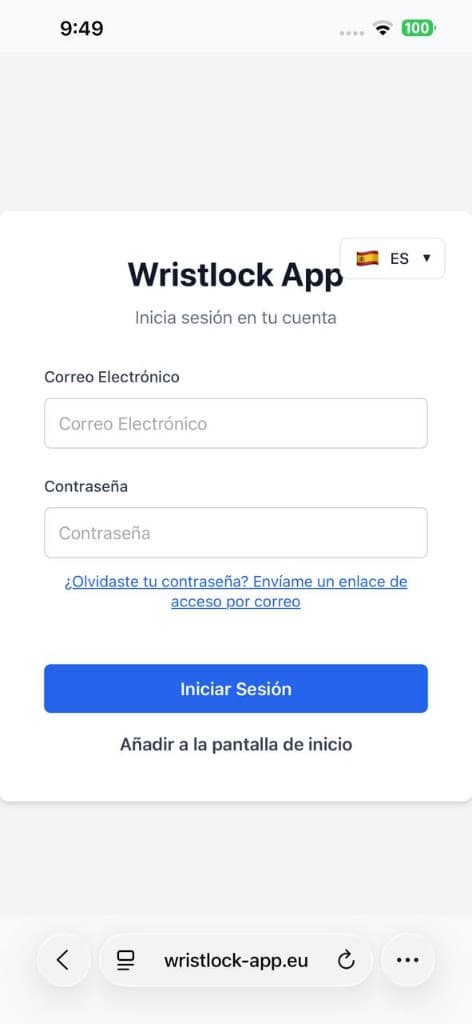
    Open the app in Safari
  2. Tap Share
    Tap the Share button (a square with an arrow up).
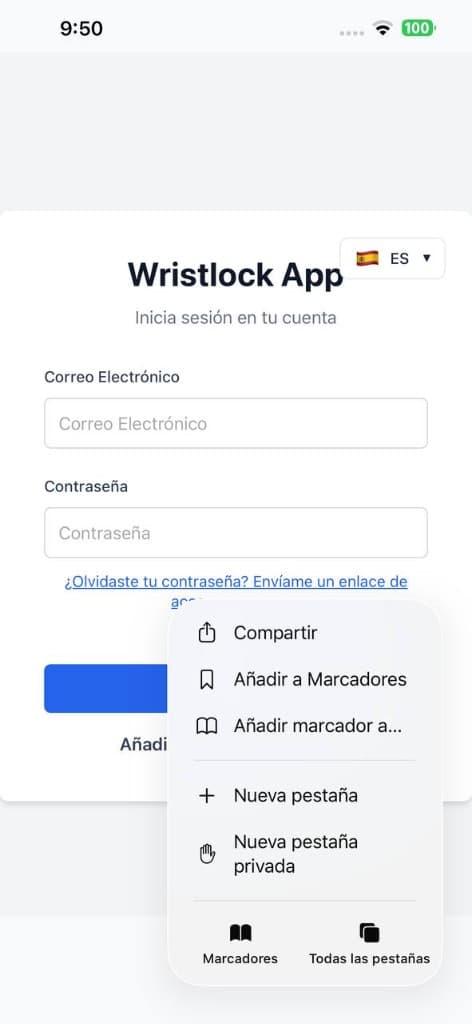
    Tap Share
  3. Choose “Add to Home Screen”
    Scroll the sheet and tap “Add to Home Screen”.
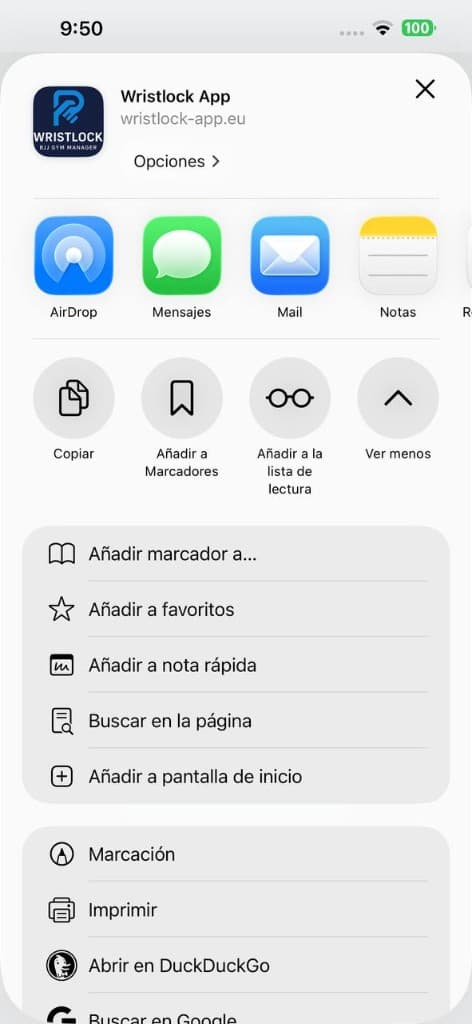
    Choose “Add to Home Screen”
  4. Confirm
    Edit the name if you want, then tap “Add”.
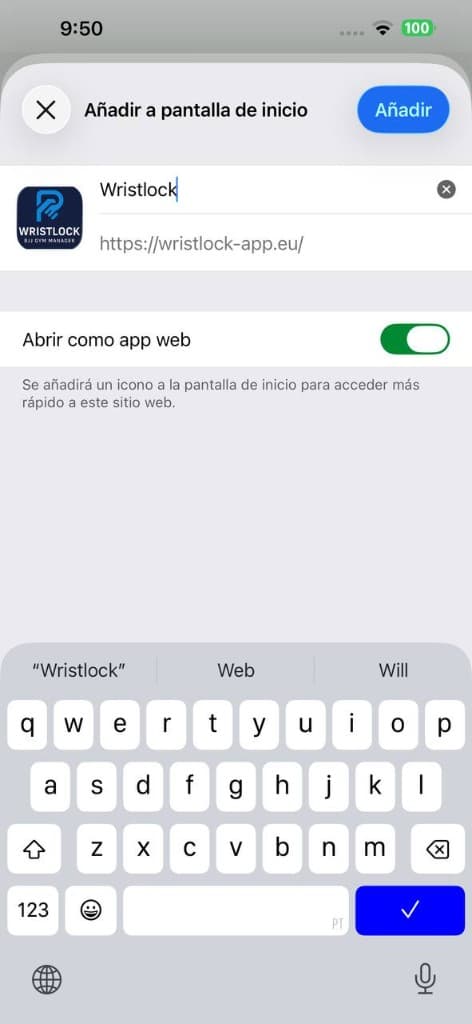
    Confirm
Tip
If you don’t see “Add to Home Screen”, scroll down—iOS hides it further in the list.
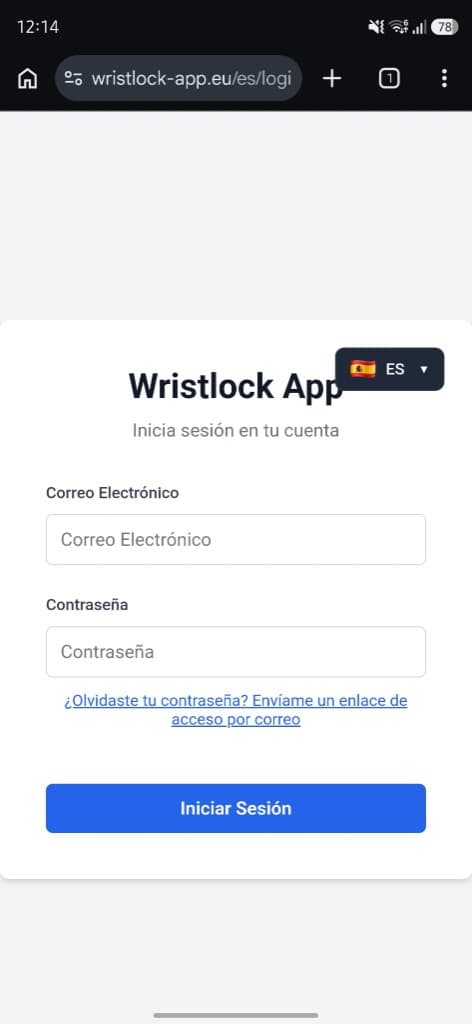
Android (Chrome / Samsung Internet)

Most Android browsers support this. Chrome is the most reliable.

Android
  1. Open the app in your browser
    Go to this website in Chrome (or Samsung Internet).
    Open the app in your browser
  2. Open the menu
    Tap the menu button (three dots in the top-right).
    Open the menu
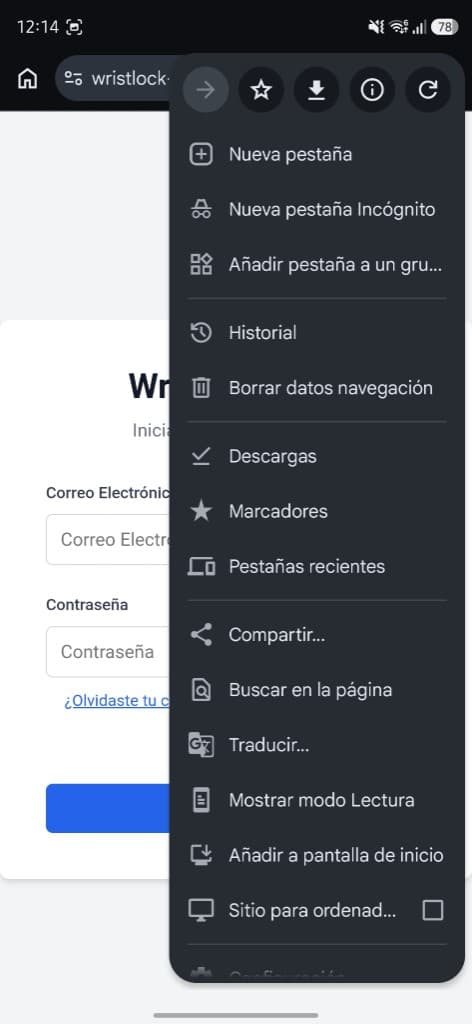
  3. Tap “Add to Home screen” / “Install app”
    Depending on your browser, it may say “Install app” or “Add to Home screen”.
    Tap “Add to Home screen” / “Install app”
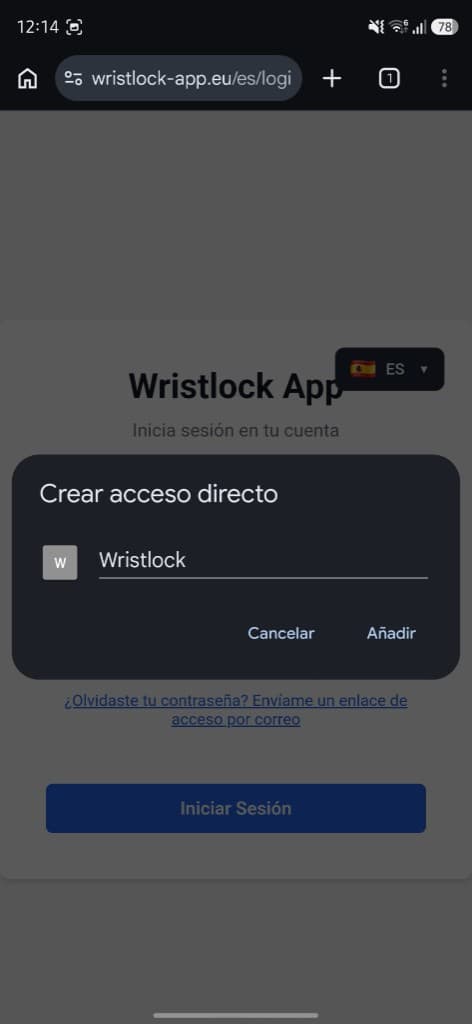
  4. Confirm install
    Tap “Add” or “Install”. The icon will appear on your home screen.
Tip
If you see an “Install” banner, use that—it’s the quickest path.

Troubleshooting

Can I install from a QR code link?
Yes. Scan the QR code, open the link in Safari (iOS) or Chrome (Android), then follow the steps above.
I don’t see “Add to Home Screen”
On iOS, make sure you’re using Safari and scroll the Share sheet. On Android, try Chrome and look for “Install app” in the menu.
Will it update automatically?
Yes. It’s still the same website—updates are available the next time you open it.